Connect your OpenCart store to bring your orders, revenue, products and customers into Trackian. Takes about 5 minutes. You'll need admin access to your OpenCart store (version 3 or 4).
Step 1 — Start the connection in Trackian
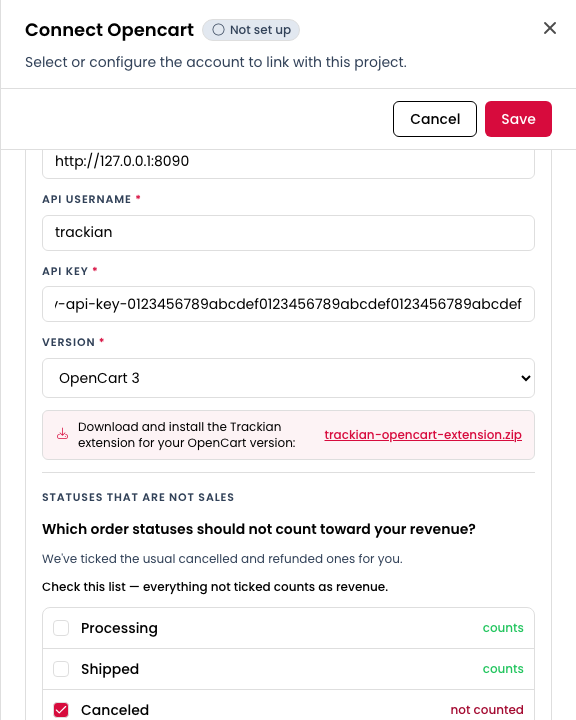
- In Trackian, go to Setup → Extensions, find OpenCart and click Connect.
- Enter your Shop URL (e.g.
https://yourshop.com) and select your OpenCart version. - A download link for the Trackian extension appears — download the
.ocmod.zipfile. Keep this window open; you'll come back to it in Step 4.
Step 2 — Install the module on your store
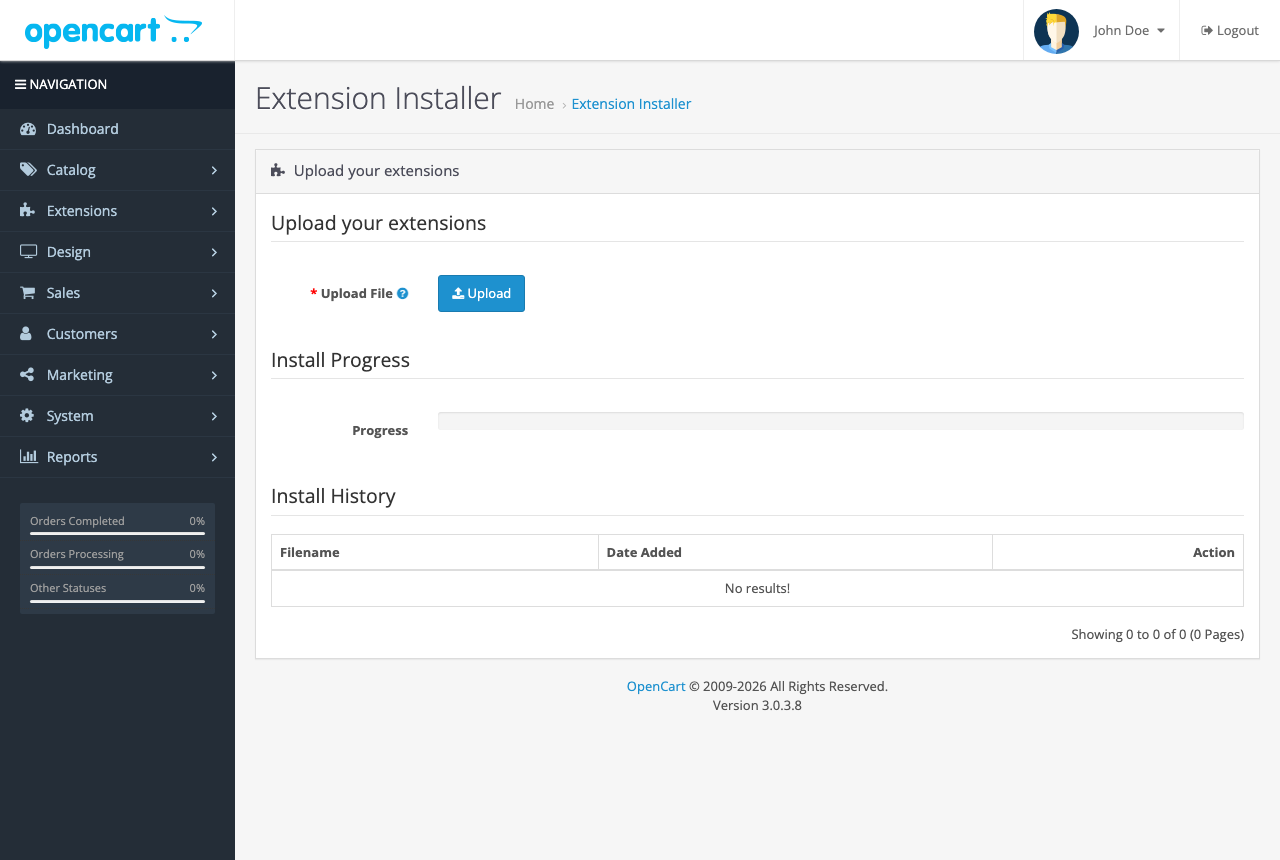
- In your OpenCart admin, go to Extensions → Installer and upload the
.ocmod.zipyou just downloaded. - OpenCart 3 only: go to Extensions → Modifications and click the Refresh button (top right) so the change takes effect.
Step 3 — Create an API user and key
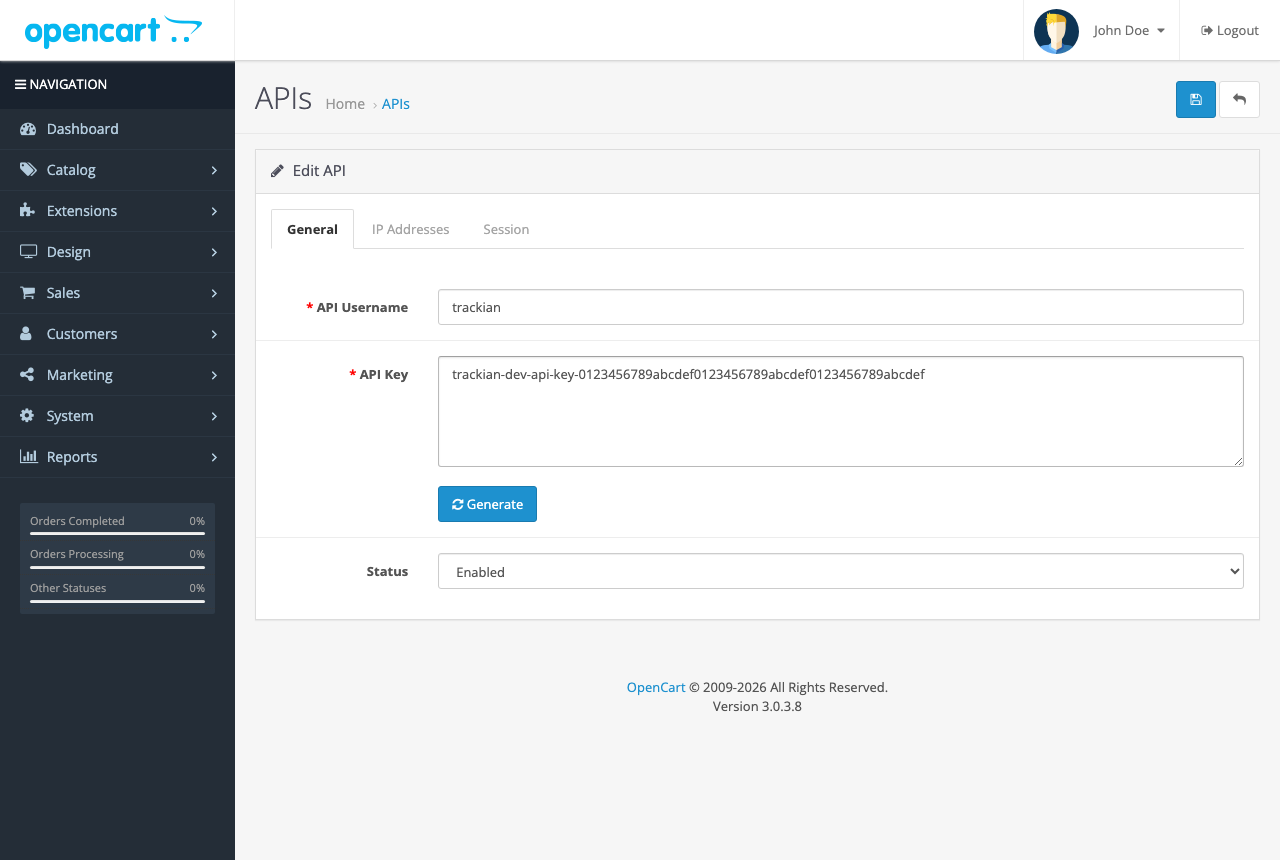
- In your OpenCart admin, go to System → Users → API and click Add New (or reuse an existing API user).
- Pick a username (e.g.
trackian), click Generate next to the API Key field, and set Status to Enabled.
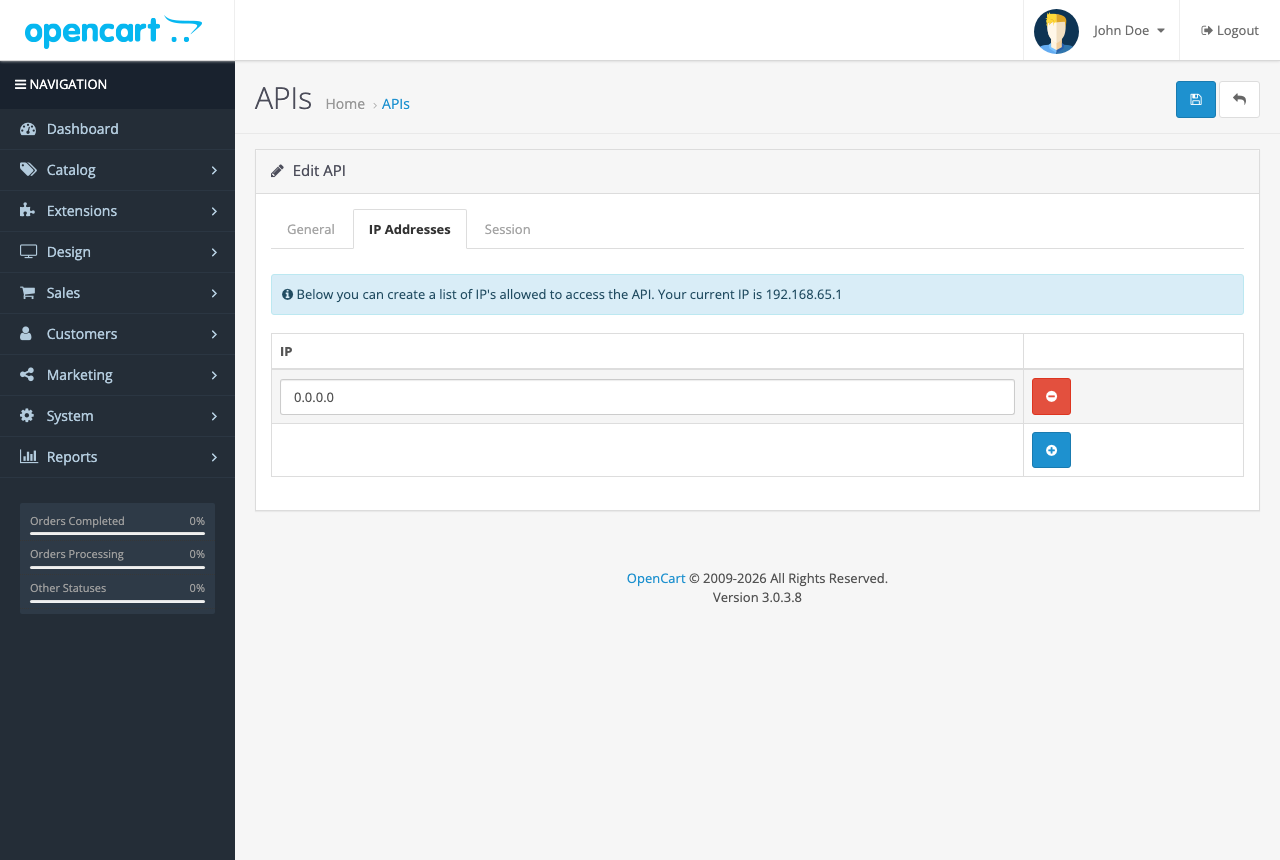
- Open the IP Addresses tab and add
0.0.0.0. OpenCart requires at least one allowed IP here — Trackian connects using your API key, so no IP restriction is needed. - Click Save, and copy the username and API key.
Step 4 — Finish in Trackian
- Back in the Trackian connect window, paste the API Username and API Key.
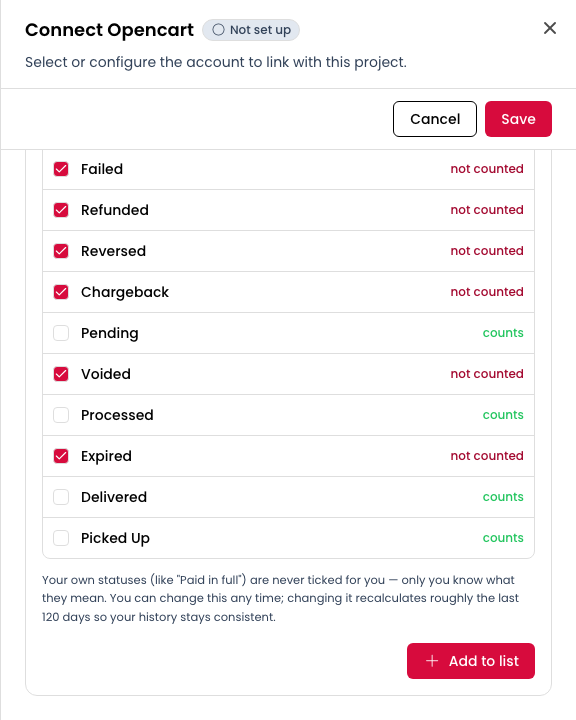
- Trackian reads your store's order statuses and shows them as a list. Tick the statuses that should not count as revenue — the usual cancelled and refunded ones come pre-ticked. Your own custom statuses are never ticked for you; only you know what they mean.
- Click Add to list, then Save.
What happens next
- Your first data arrives within a few hours, including roughly the last 120 days of order history.
- Trackian keeps your numbers in sync with your store several times a day — orders, revenue, products and customers.
- You can change the excluded statuses at any time (open the OpenCart card → your shop). Changing them recalculates about the last 120 days so your history stays consistent — nothing goes blank while it runs.
Troubleshooting
- "Your store rejected the API username or key" — re-check both in System → Users → API; the key must match exactly.
- "Install the Trackian module" message — the module isn't installed (or isn't active) on your store yet; repeat Step 2, then re-open the connect window.
- "Update the Trackian module" notice — your store runs an older module version. Download the current one from the connect window (Step 1) and install it over the old one; your data keeps flowing in the meantime.