Overview
This guide walks you through connecting a Shopify store to Trackian with your own custom app, using a Client ID and Client secret from Shopify's Dev Dashboard. In Trackian this method is called Custom app (OAuth).
Use it when:
- you manage Shopify through an agency or partner setup, or connect several stores,
- you want a standalone connection that isn't tied to the one-click app install,
- you previously used an Admin API access token (
shpat_…). Shopify stopped allowing new admin-created custom apps on January 1, 2026, and this is the replacement.
If you just want the quickest route, use Connect with OAuth instead. It is a one-click install with nothing to copy. All three methods are compared in Connect: Shopify.
The whole setup takes about 10 minutes. Trackian only ever asks for read access, so it cannot change anything in your store.
What You'll Need
- A Trackian project, and a role that lets you manage its platforms
- Access to the Shopify Dev Dashboard (dev.shopify.com) for the organization that owns your store, with permission to create and install apps (the store owner has this by default)
- Your store handle: the part before
.myshopify.com. Forhttps://example.myshopify.comthe handle isexample. You can also see it in your admin address:admin.shopify.com/store/example
Tip: keep Trackian and Shopify open in two browser tabs. You start in Trackian, do the app setup in Shopify, then come back to Trackian to paste two values.
Step 1: Open the Shopify connection in Trackian
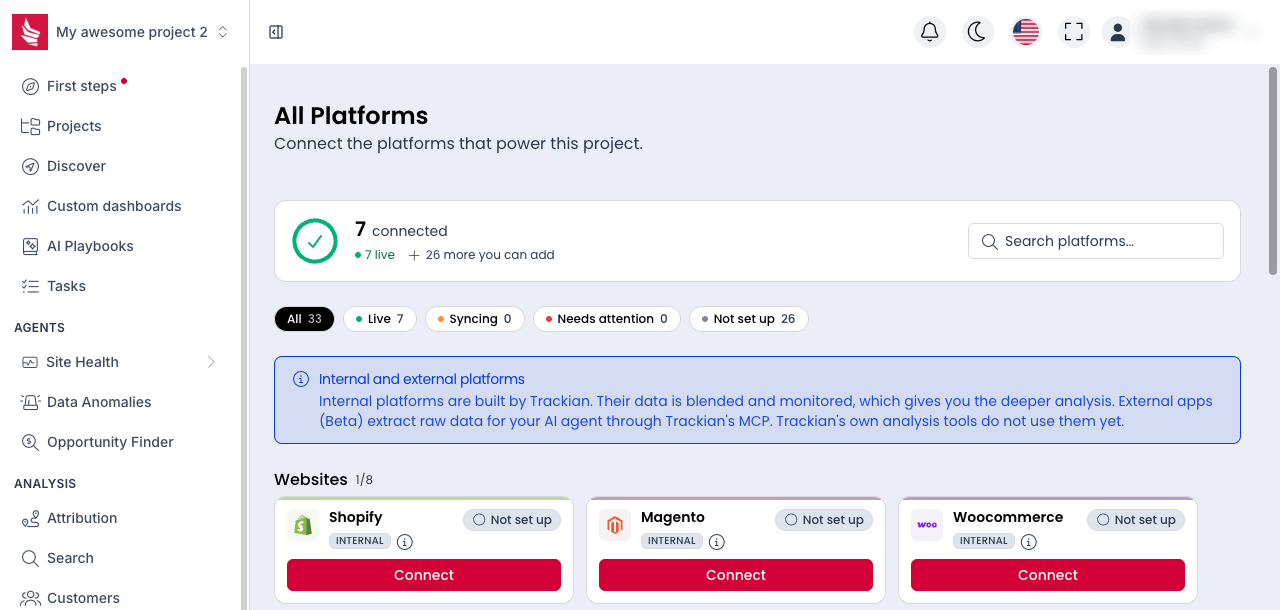
- In Trackian, open the project you want to connect and go to Setup → Platforms.
- Find the Shopify card under Websites and select Connect.
- In the Connect Shopify panel, select the Custom app (OAuth) tab. You'll see three fields: Shop name, Client ID and Client secret, plus a short reminder of the steps below.
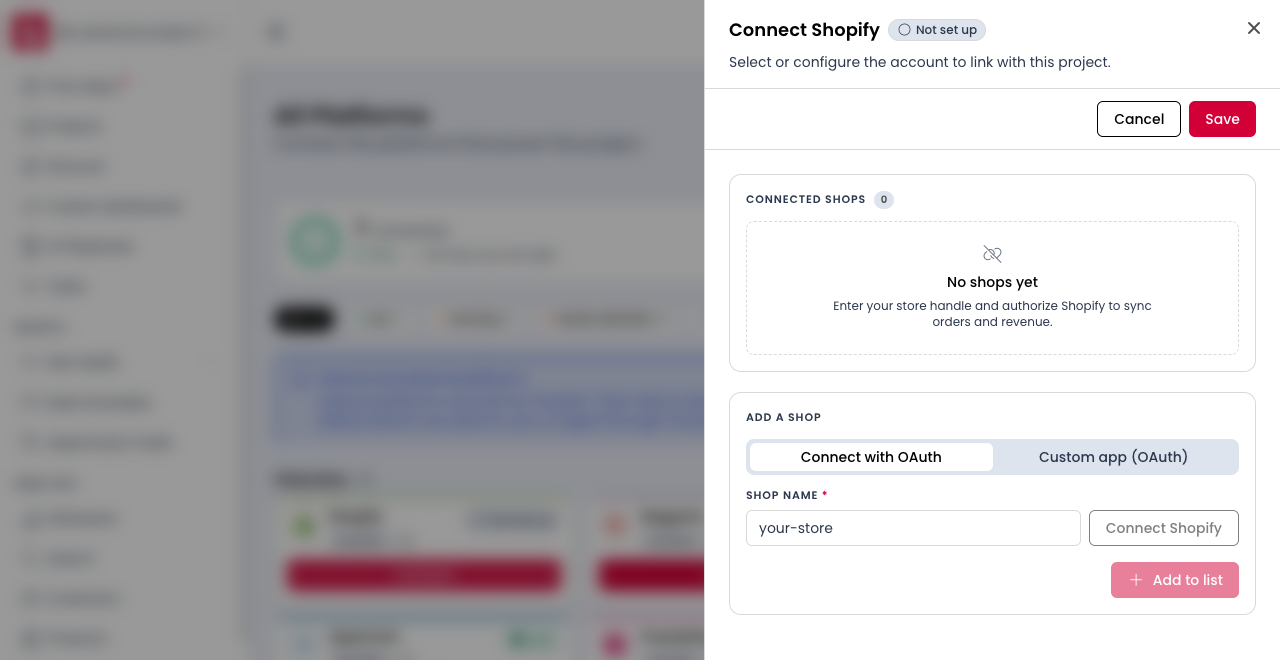
Leave this tab open. You'll come back to it in Step 5.
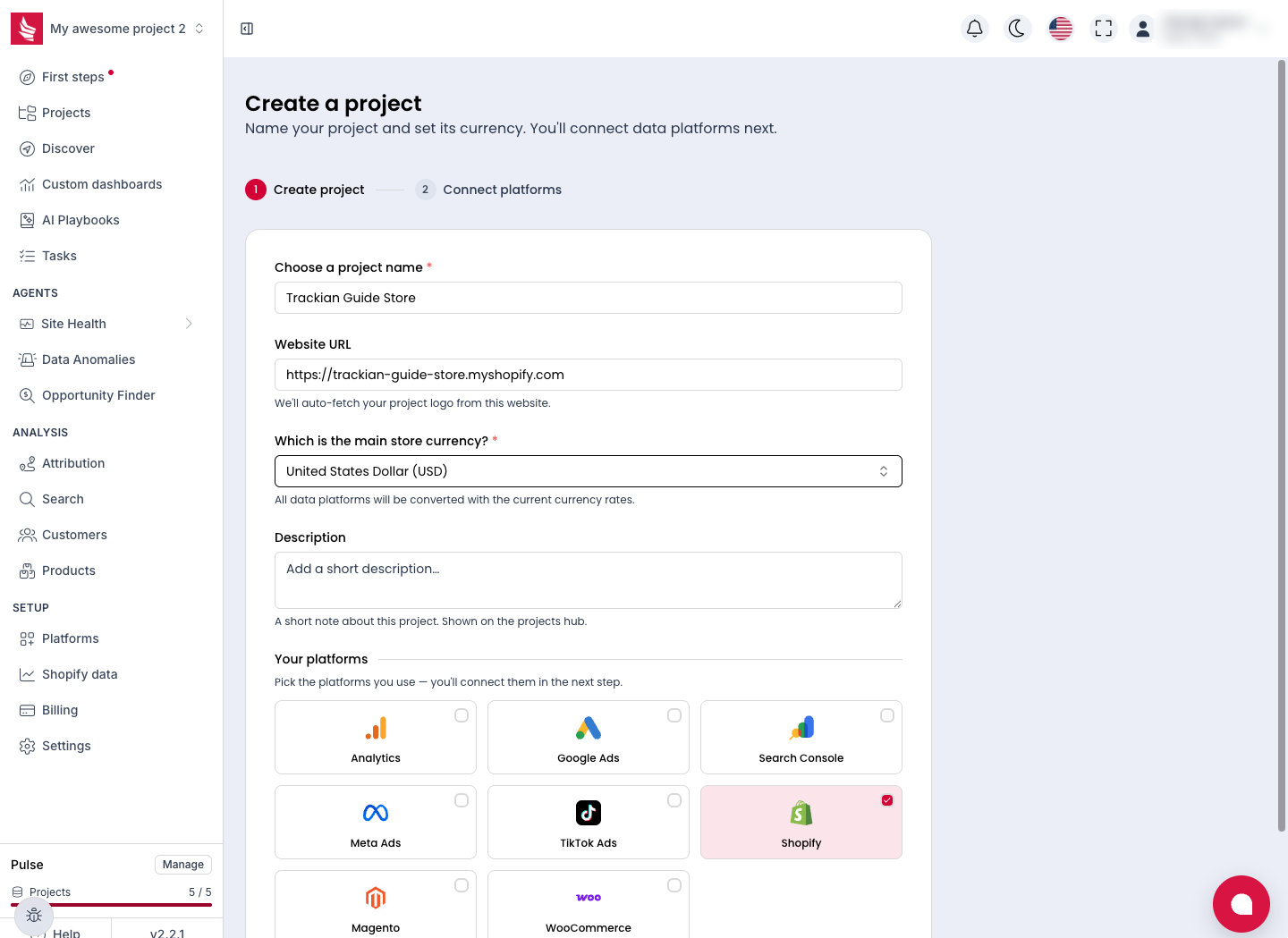
Starting a brand-new project? Select Add project, enter a name, your store URL and your main store currency, tick Shopify under Your platforms, then select Create and connect. You'll land on the same Shopify panel.
Step 2: Create the app in the Shopify Dev Dashboard
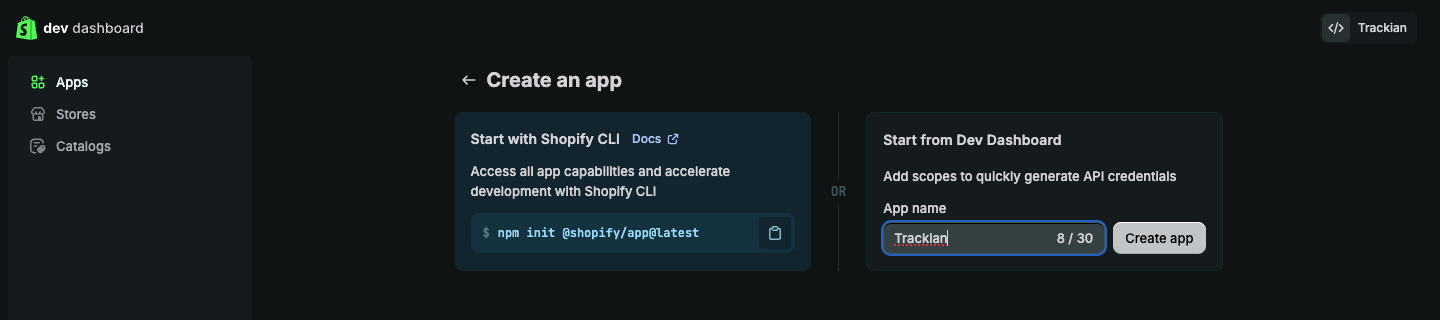
- Open the Shopify Dev Dashboard and select Apps → Create app.
- Under Start from Dev Dashboard, enter an app name, for example
Trackian, and select Create app. (You don't need the Shopify CLI option on the left.)
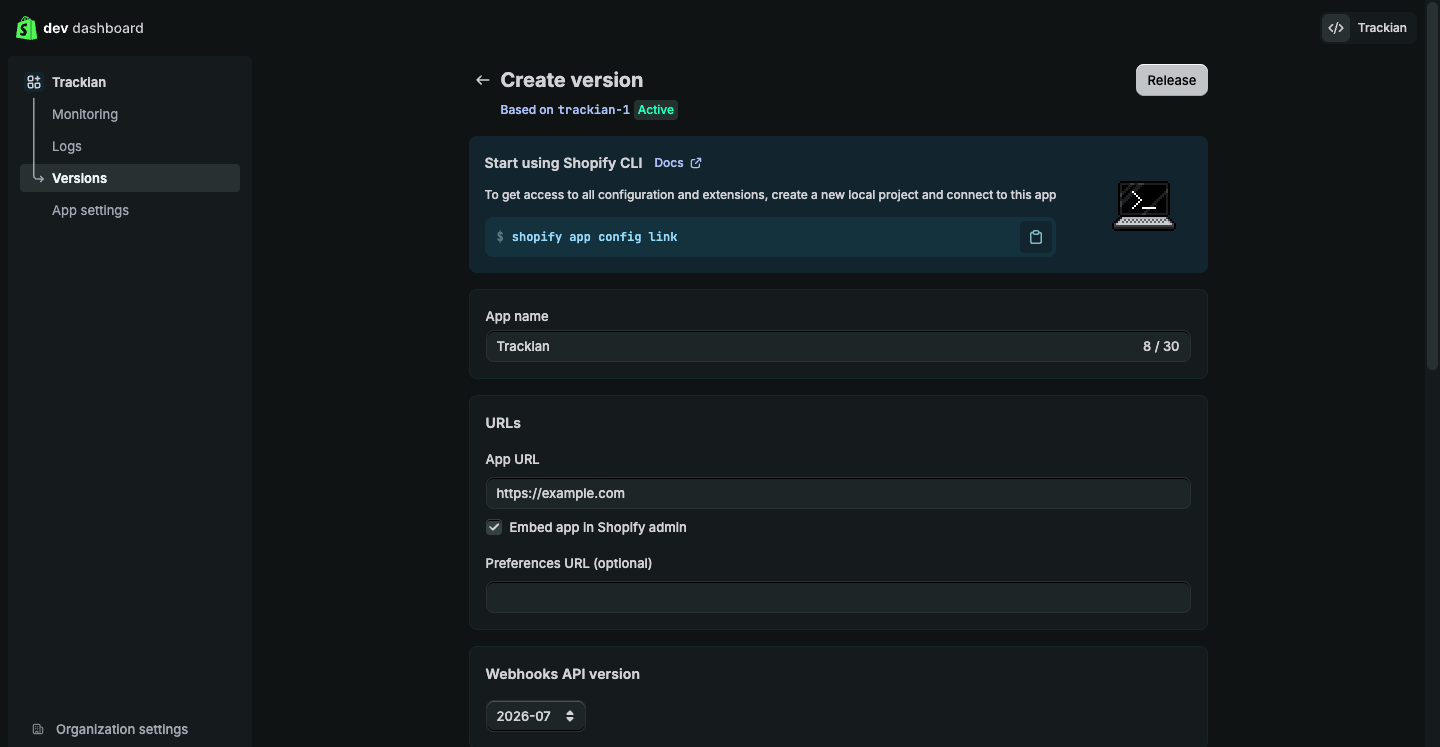
- Shopify opens the Create version page. A version is a saved snapshot of the app's configuration. Leave App URL as it is (
https://example.comis fine, because this app has no screen of its own) and leave Embed app in Shopify admin as it is.
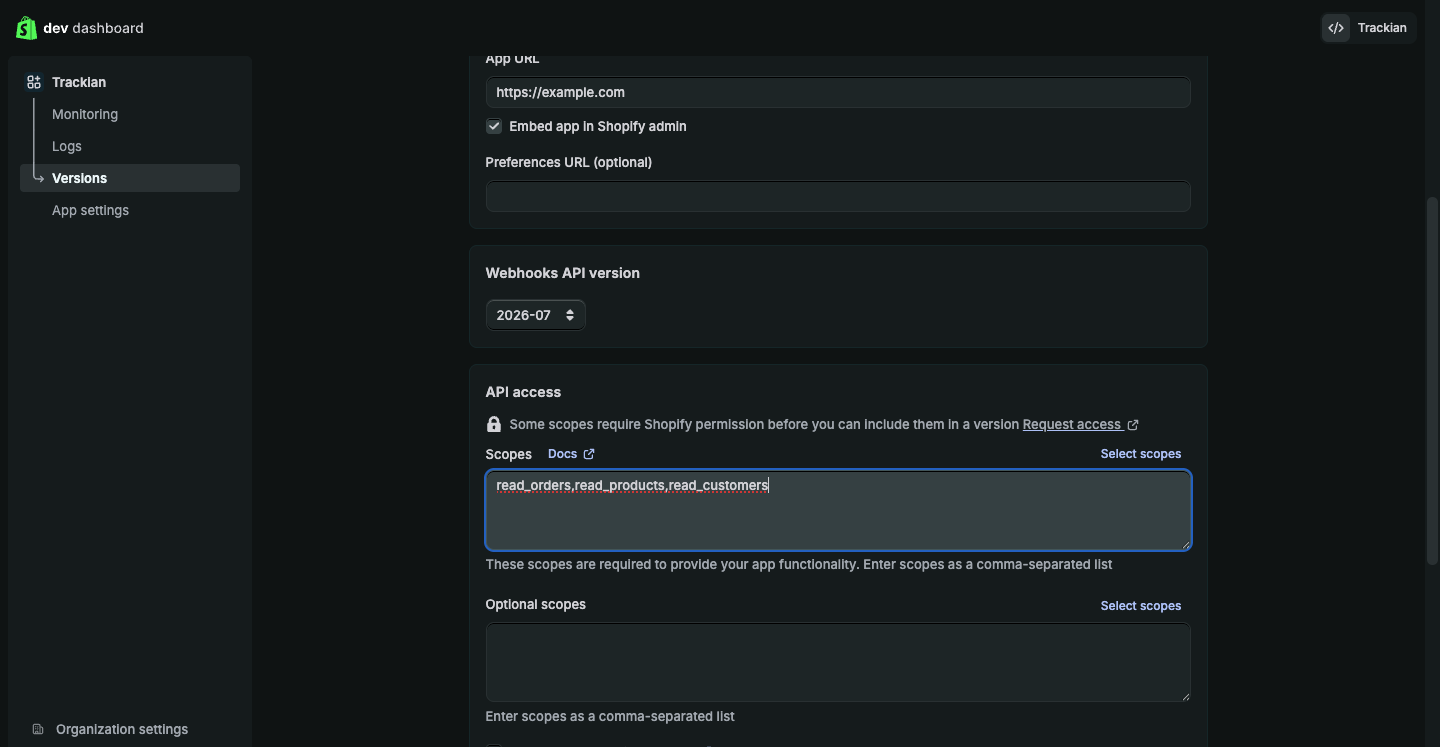
- Scroll down to API access. In the Scopes box, paste exactly:
read_orders,read_products,read_customers
These three read-only scopes are what Trackian needs to import orders, products and customer data. Leave Optional scopes and Allowed redirection URL(s) empty.
- Select Release. A confirmation dialog appears; the version name and message are optional, so select Release again. The new version is now marked Active.
Important: scopes only take effect once a version is released. If you change scopes later, create a new version and release it again.
Step 3: Install the app on your store
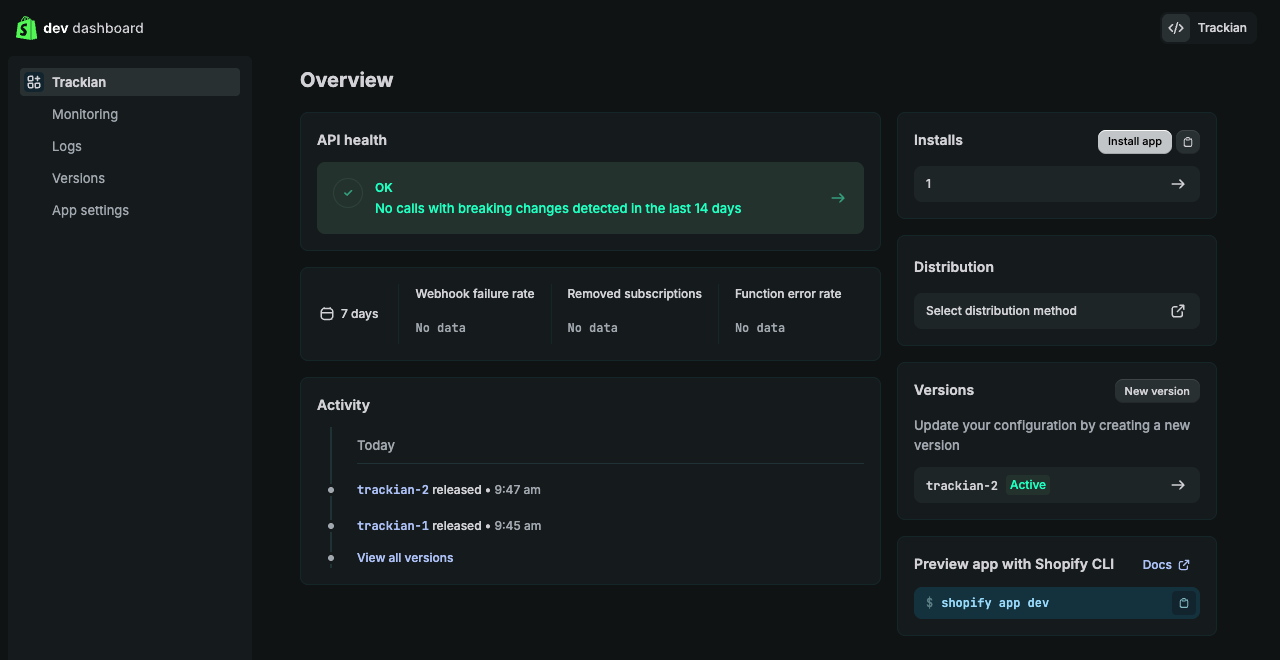
- In the app's left menu, select the app name to open Overview.
- In the Installs box, select Install app.
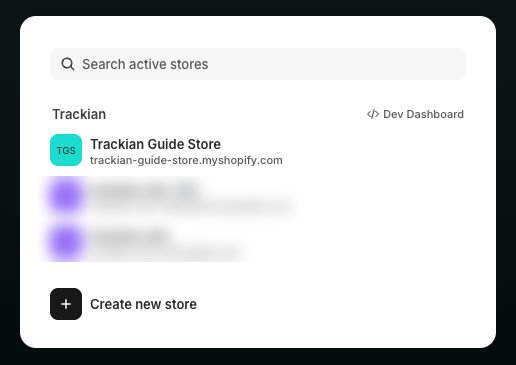
- Choose the store you want to connect.
- Review the permissions (customer, staff and store data, all view-only) and select Install.
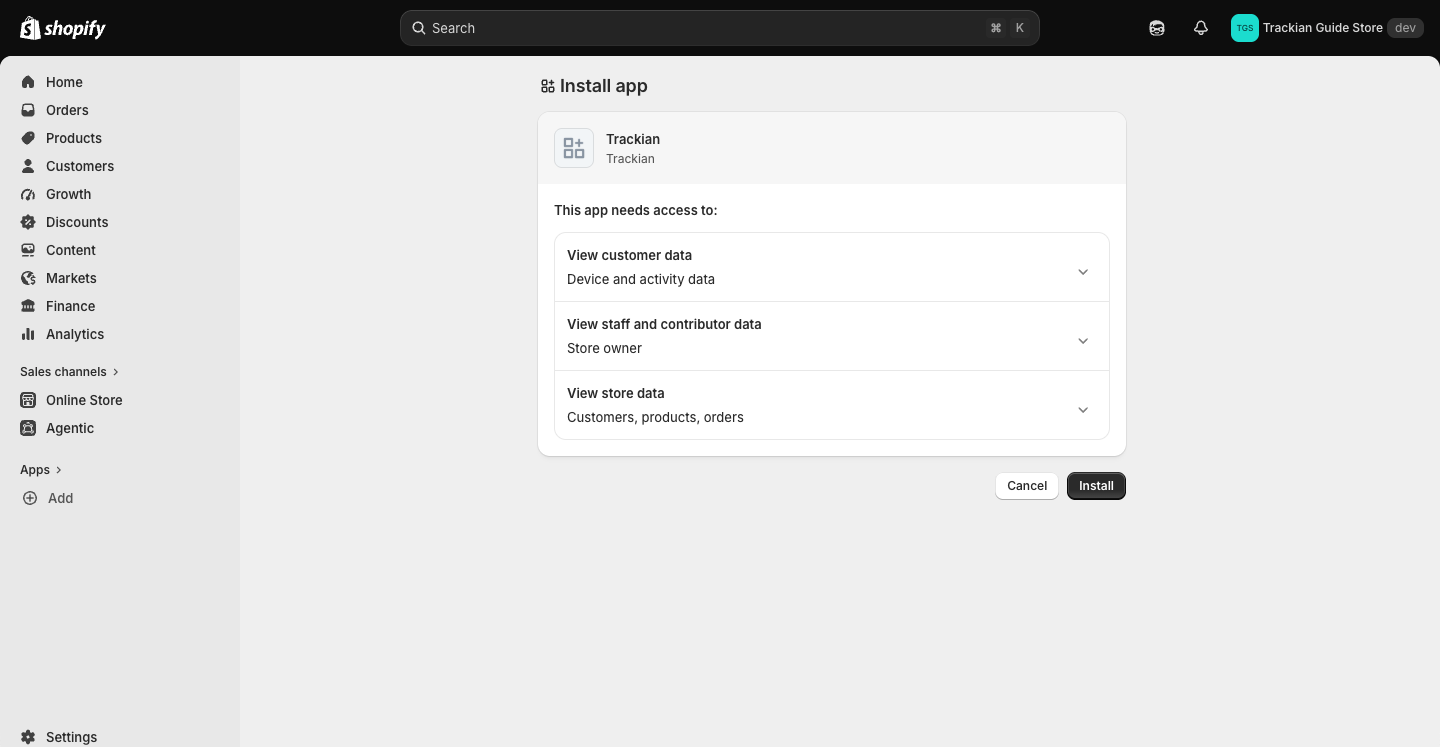
After installing, Shopify opens the app inside your admin and shows a page titled Example Domain. That's expected. It's the placeholder App URL from Step 2, not an error. You can close it.
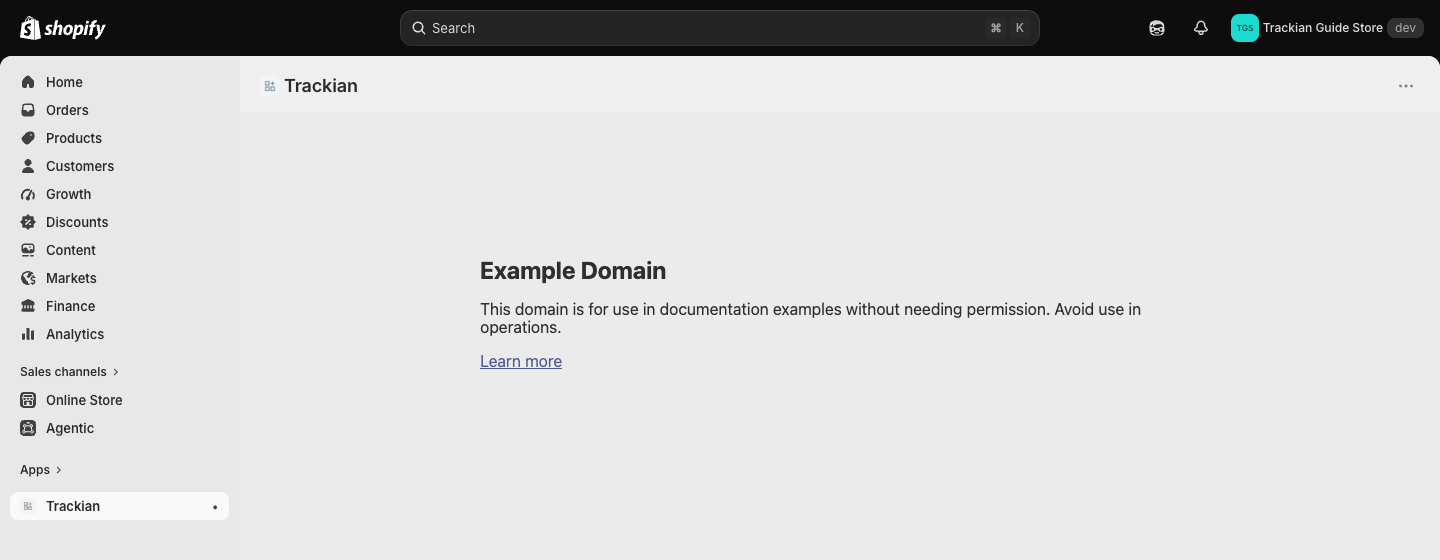
Important: the Client ID and Client secret only work once the app is installed on the store. Skipping this step is the most common cause of a failed connection.
Step 4: Copy your Client ID and Client secret
- Back in the Dev Dashboard, open your app and select App settings.
- Under Credentials, use the copy buttons to copy the Client ID and then the Secret.
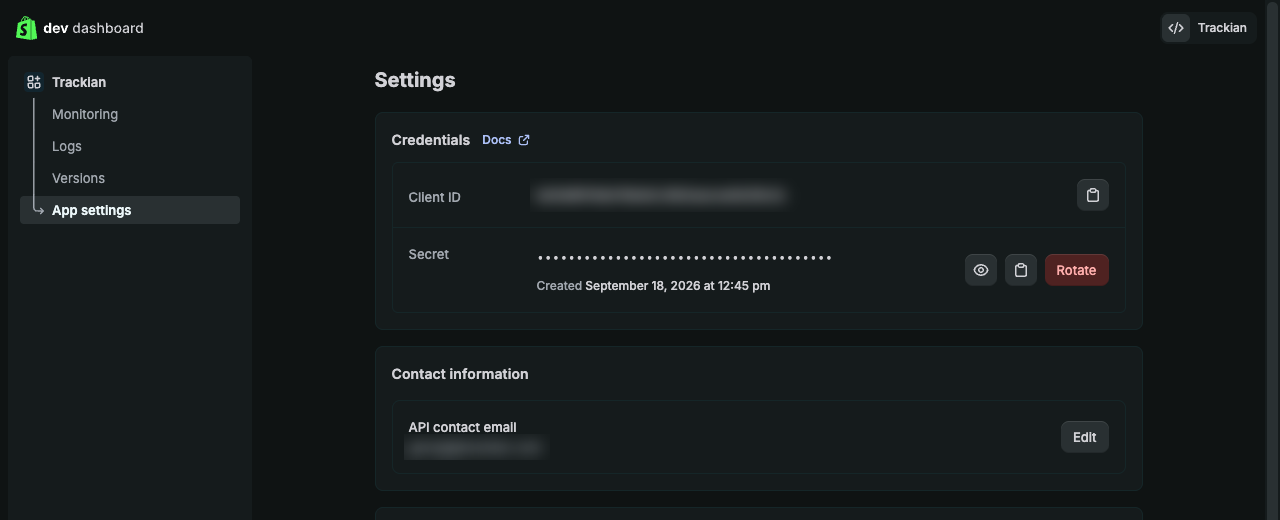
Treat the secret like a password. Don't share it in chat or email. If it's ever exposed, select Rotate to generate a new one, then update it in Trackian (see Troubleshooting).
Step 5: Paste the credentials into Trackian
- Return to the Custom app (OAuth) tab from Step 1.
- Enter your Shop name (the store handle, for example
example). If you paste the fullexample.myshopify.comaddress, Trackian trims it for you. - Paste the Client ID and the Client secret.
- Select Connect with Client ID/Secret.
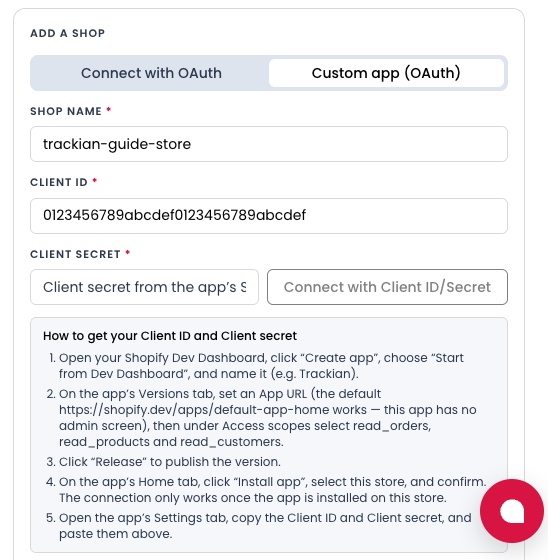
Trackian checks the credentials with Shopify straight away. When they're accepted you'll see "Shopify store connected and added." and your store appears under Connected shops with a Custom app badge.
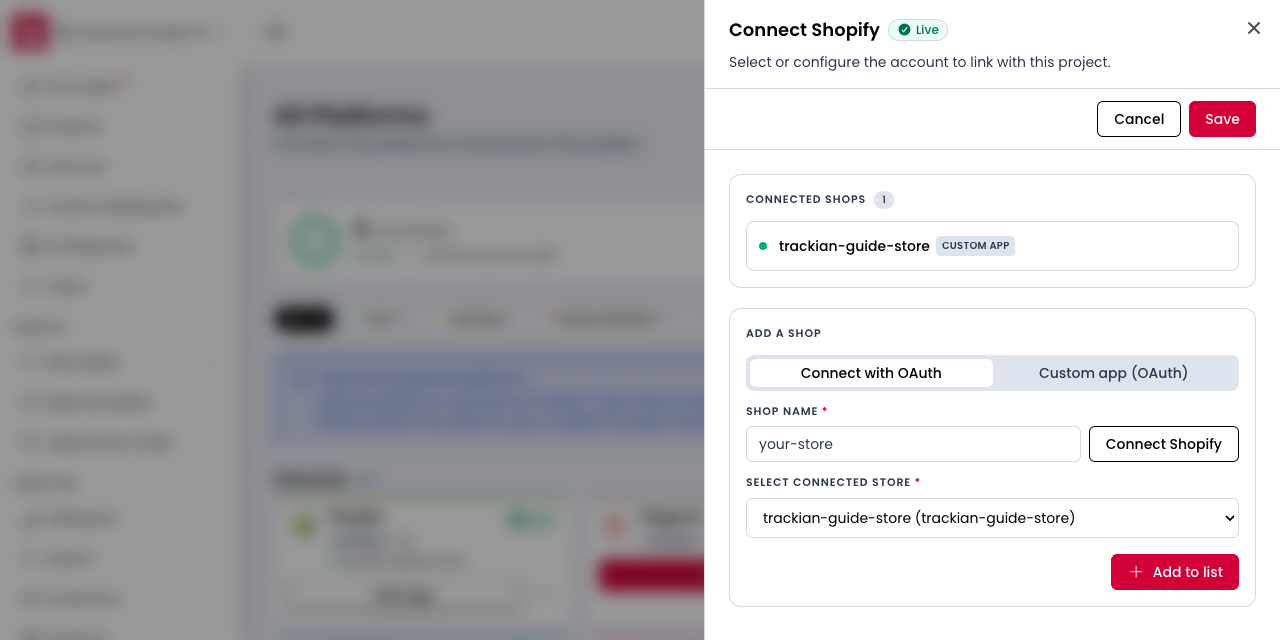
- Select Save at the top of the panel.
Step 6: Check that your data is arriving
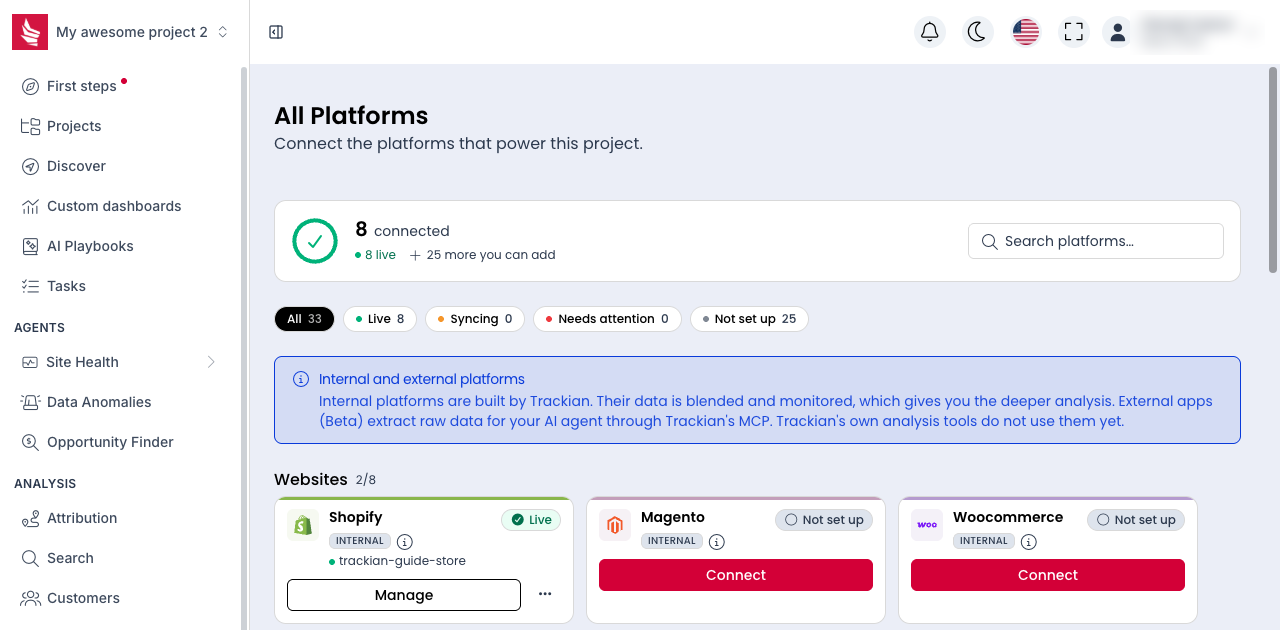
The Shopify card on the Platforms page now shows Live, with your store handle underneath.
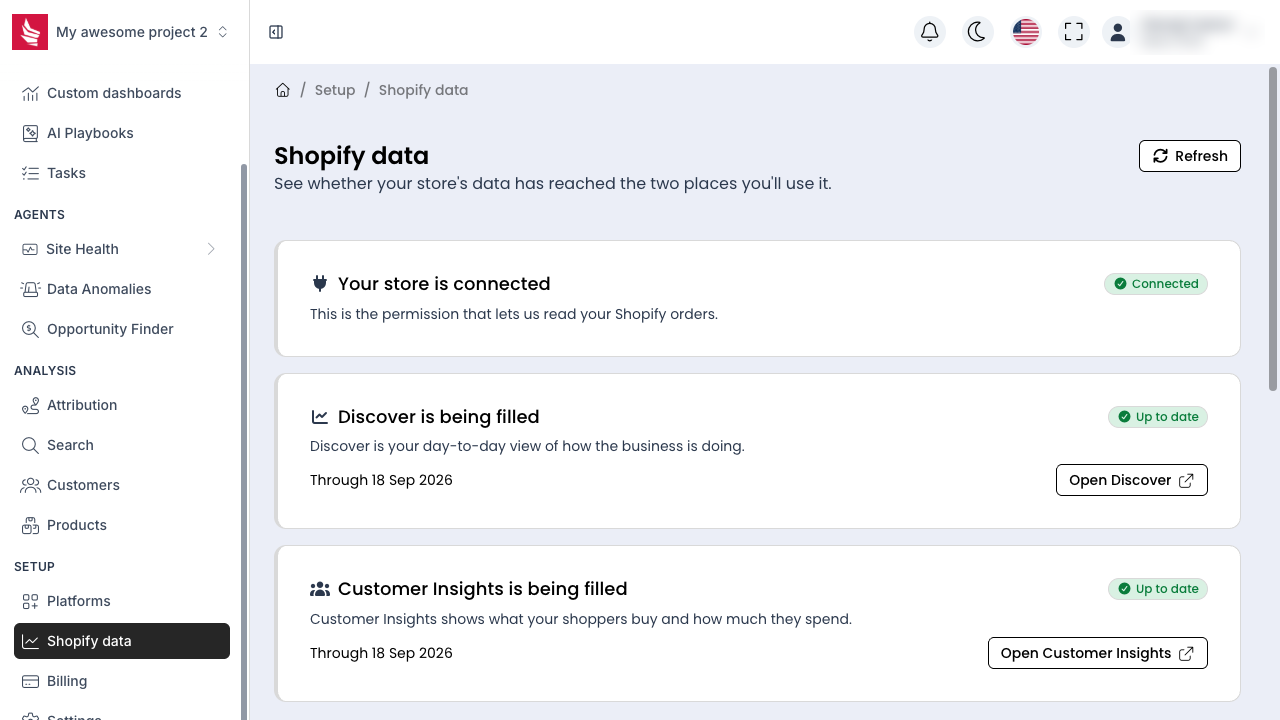
For more detail, go to Setup → Shopify data. This page tells you whether your store is connected and whether Discover and Customer Insights have been filled, and it lists the orders that arrived for each day so you can compare them with your Shopify admin.
What Happens Next
- The first import starts as soon as you save. Recent days usually appear within a few minutes; a full historical import can take 24 to 48 hours.
- Trackian then syncs automatically every day. There is nothing to re-paste: Trackian exchanges your Client ID and secret for a short-lived access token and renews it by itself.
- The newest day or two can differ slightly between Discover and Customer Insights, because they collect on their own schedules. That's normal.
Troubleshooting
"Invalid Client ID or Client secret. Make sure the app is installed on this store…"
The app isn't installed on this store yet, or the values don't match. Finish Step 3, then re-copy both values from App settings. If the secret was rotated after you copied it, the old one no longer works.
"Invalid shop name" or "Missing shop name"
Use the myshopify.com handle, not a custom domain. For shop.yourbrand.com, look up the handle in your admin address: admin.shopify.com/store/<handle>.
The connection works but orders, products or customers are missing
Check the scopes on the app's Versions page. All three must be present (read_orders, read_products, read_customers) and the version must be Active. If you add a scope, release a new version. Shopify may then ask you to approve the updated permissions in your store admin.
I rotated the secret and the connection stopped working
In Trackian, go to Setup → Platforms → Shopify → Manage, select the edit icon next to the store, open the Custom app (OAuth) tab, paste the Client ID and the new secret, select Connect with Client ID/Secret, then Save.
"You have reached the limit of projects you can create"
This appears when creating a new project, not when connecting Shopify. Connect the store to an existing project, or upgrade your plan under Setup → Billing.
Data still not appearing after 48 hours
Contact support@trackian.com with your shop name and the date you connected.
Security Notes
- Your Client ID and Client secret are encrypted and stored securely.
- Trackian only requests read access. It cannot modify your store.
- You can revoke access at any time by uninstalling the app from your Shopify admin (Settings → Apps and sales channels).
- Trackian never stores customer payment information.
Need Help?
If you get stuck, contact us at support@trackian.com with:
- your store name,
- the step where you're stuck,
- any error message you're seeing.