Overview
Connecting Shopify to Trackian enables automatic import of your orders, products, customer data, and revenue metrics. This forms the foundation for all your profit calculations and e-commerce analytics.
Trackian offers three ways to connect a Shopify store — pick the one that fits you:
- Connect with OAuth (recommended) — a one-click install. No credentials to copy anywhere.
- Custom app (OAuth) — for agencies, multi-store setups, or a standalone connection that isn't tied to the app-install flow. Created from Shopify's Dev Dashboard using a Client ID and Client secret.
- Use an access token (legacy) — only works if your store already has an admin-created custom app from before Shopify retired that flow. Shopify stopped allowing new admin-created custom apps on January 1, 2026 — if you don't already have one, use Custom app (OAuth) instead. This tab only appears in Trackian once a store has been connected this way.
If you're not sure which applies to you: try Connect with OAuth first.
What You'll Need
- Admin access to your Shopify store
- Your Shopify store URL (e.g., yourstore.myshopify.com)
Method 1: Connect with OAuth (recommended)
- In Trackian, go to Setup → Platforms. Find the Shopify card and select Connect.
- On the Connect with OAuth tab, enter your Shop name (the subdomain only — for
https://example.myshopify.com, enterexample). - Select Connect Shopify. You'll be redirected to Shopify to approve the connection, then back to Trackian, connected.
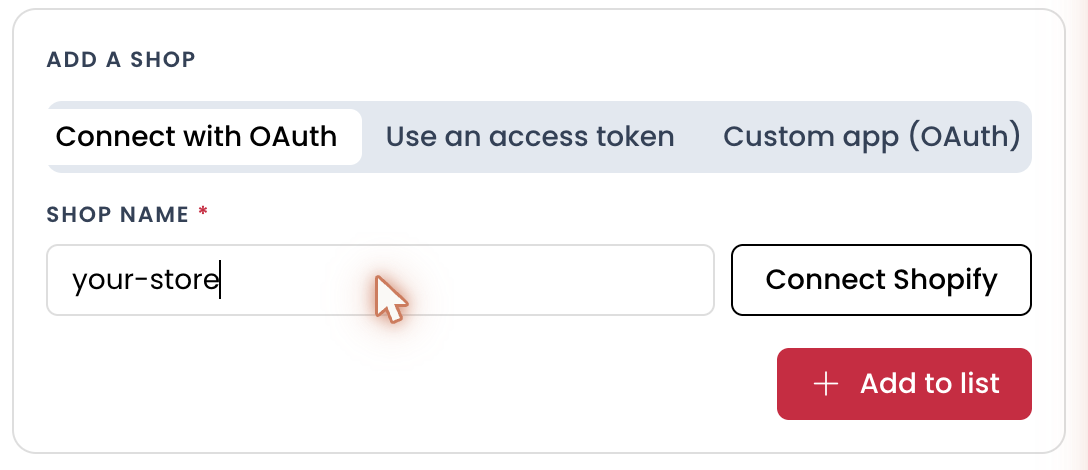
No tokens or secrets to copy for this method.
Method 2: Custom app (OAuth)
Use this if you manage Shopify through an agency/partner setup, need a connection that isn't tied to the app-install flow, or don't already have a legacy custom app (see Method 3). This is Shopify's current, supported way to create a scoped, review-free integration — it replaced the old admin-created custom app flow on January 1, 2026.
In Trackian, go to Setup → Platforms → Shopify → Connect, then select the Custom app (OAuth) tab. It walks you through creating the app in Shopify's Dev Dashboard and getting your Client ID and Client secret:
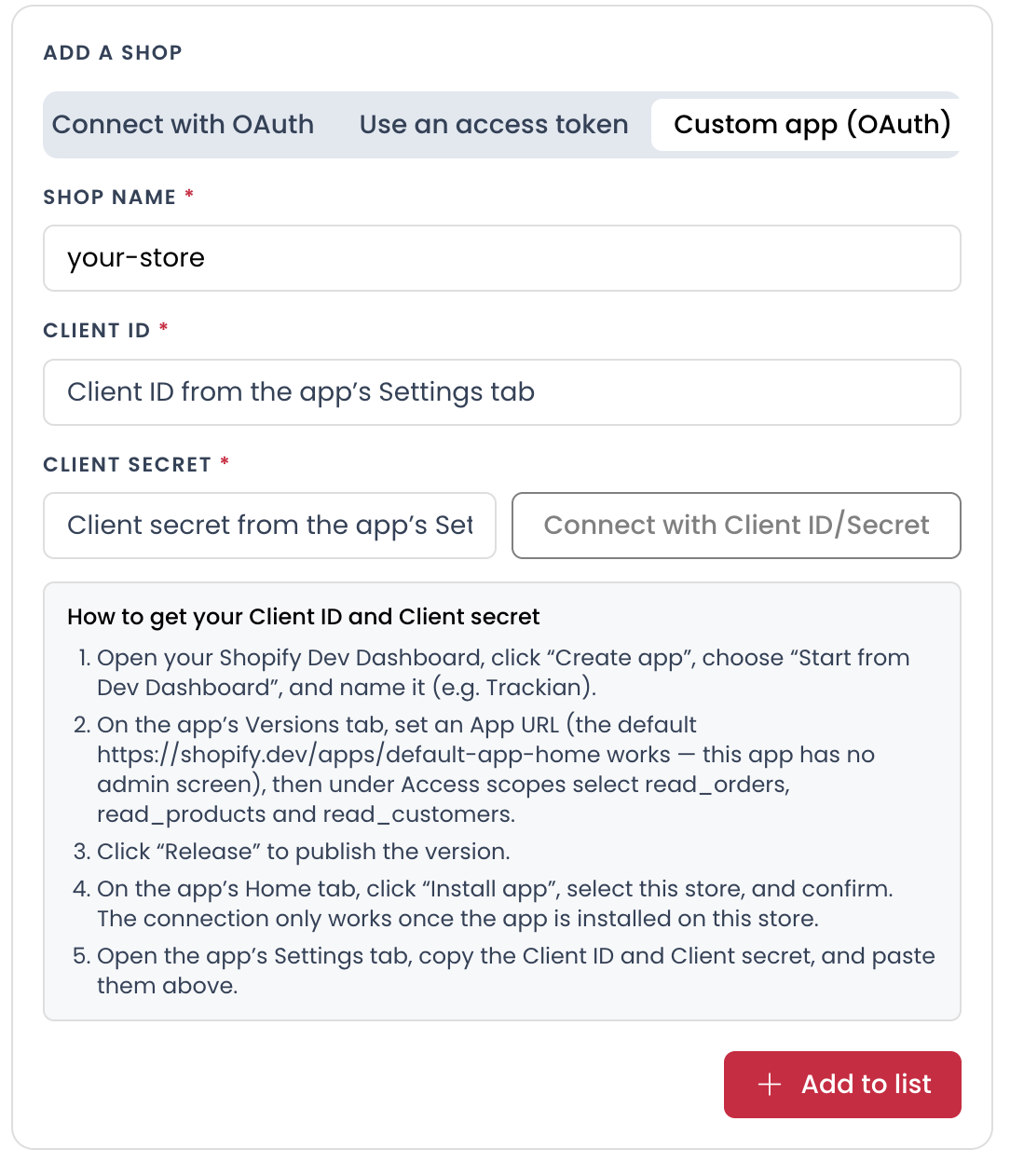
A couple of things that catch people out:
- The app must be installed on your store before the Client ID/secret will work — a common mistake is copying the credentials before completing the "Install app" step in Shopify's Dev Dashboard.
- Trackian exchanges these credentials for a short-lived access token behind the scenes and refreshes it automatically before it expires — you won't need to come back and re-paste anything unless the app is reinstalled or the secret is rotated on Shopify's side.
Method 3 (legacy): Use an access token
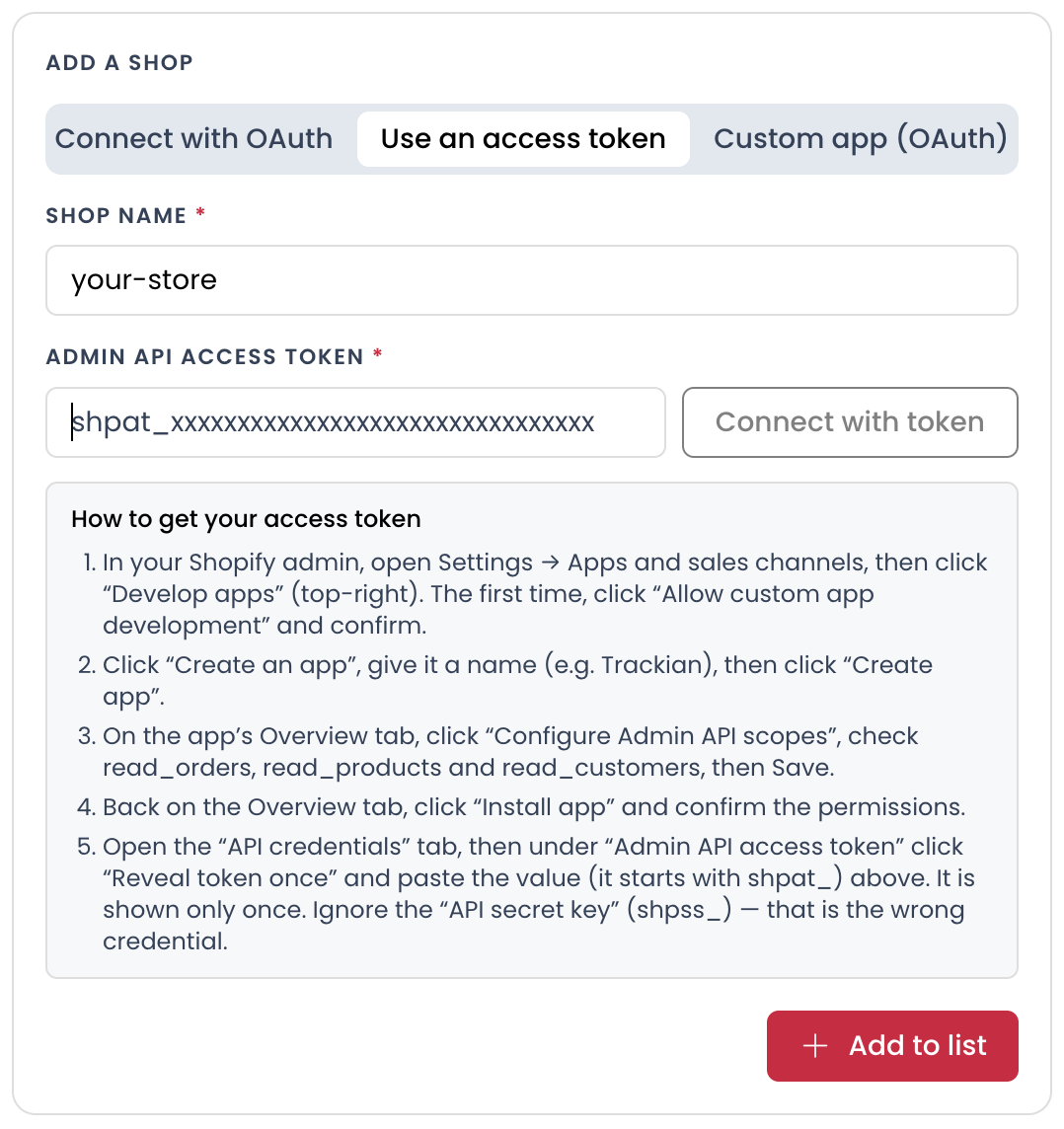
Only works for stores that already have an admin-created custom app. Shopify retired the ability to create new admin-created custom apps on January 1, 2026. If you don't already have one, use Custom app (OAuth) above instead. In Trackian, this tab is only shown once a store has already been connected this way — it won't appear for a brand-new connection.
In Trackian, go to Setup → Platforms → Shopify → Connect, then select the Use an access token tab. It walks you through finding your Admin API access token in Shopify:
What Happens Next
Once connected, Trackian will:
- Export your product catalog
- Sync historical orders
- Pull customer data for LTV calculations
- Set up daily automatic syncs
- Begin calculating profit margins (once you add COGS)
Historical data extraction begins immediately; full data import typically completes within 24-48 hours.
Troubleshooting
"Invalid client credentials" (Custom app (OAuth)) The app hasn't been installed on this store yet — go back to the Dev Dashboard and confirm installation (Method 2). Or the Client ID/Client secret don't match — re-copy both from the app's Settings tab; if the secret was regenerated since you copied it, the old one no longer works.
"Invalid API token" (legacy access token method)
Make sure you copied the entire token, with no extra spaces, and that it's the Admin API access token (starts with shpat_) — not the API secret key (shpss_).
"Shop Name is not valid" / "Shop name not found"
The Shop name field takes the bare subdomain only — example, not example.myshopify.com or https://example.myshopify.com.
Data not appearing after 48 hours Contact support at support@trackian.com with your shop name and connection date.
Security Notes
- Your credentials (access token, or Client ID/secret) are encrypted and stored securely.
- Trackian only ever requests read access — we cannot modify your store.
- You can revoke access anytime from your Shopify admin (or by uninstalling the app, for Custom app (OAuth)).
- We never store customer payment information.
Need Help?
If you encounter any issues during setup, contact us at support@trackian.com with:
- Your store name
- The step where you're stuck
- Any error messages you're seeing