Connect your WooCommerce store to bring your orders, revenue, products and customers into Trackian. Takes about 5 minutes. You'll need administrator access to your WordPress site.
Before you start
- Your store must be reachable over https:// — Trackian always calls WooCommerce over a secure connection.
- Your permalinks must be set to anything other than Plain (Settings → Permalinks in WordPress). WooCommerce's REST API is switched off without them.
Step 1 — Open the WooCommerce REST API settings
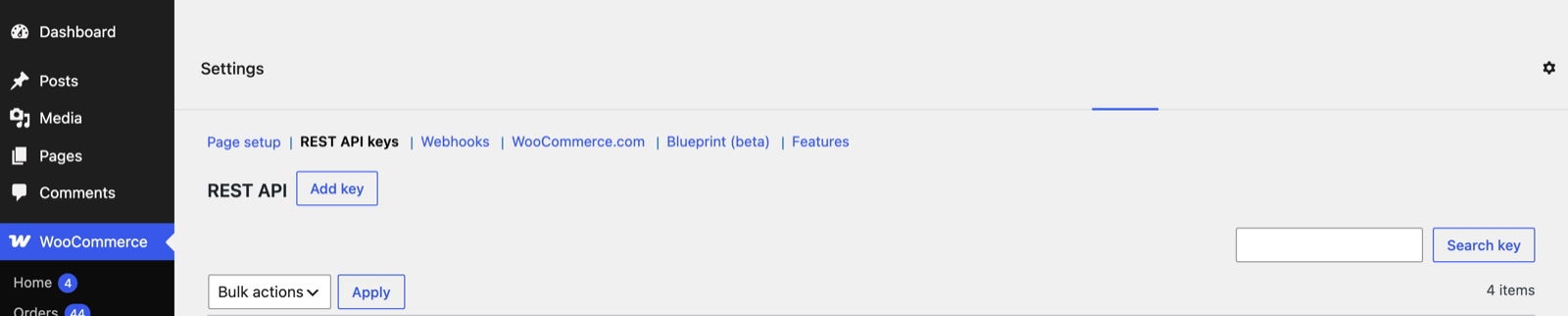
In your WordPress admin, go to WooCommerce → Settings → Advanced → REST API, then select Add key.
On stores older than WooCommerce 3.4 this lives at WooCommerce → Settings → API → Key/Apps instead.
Step 2 — Create a read-only key
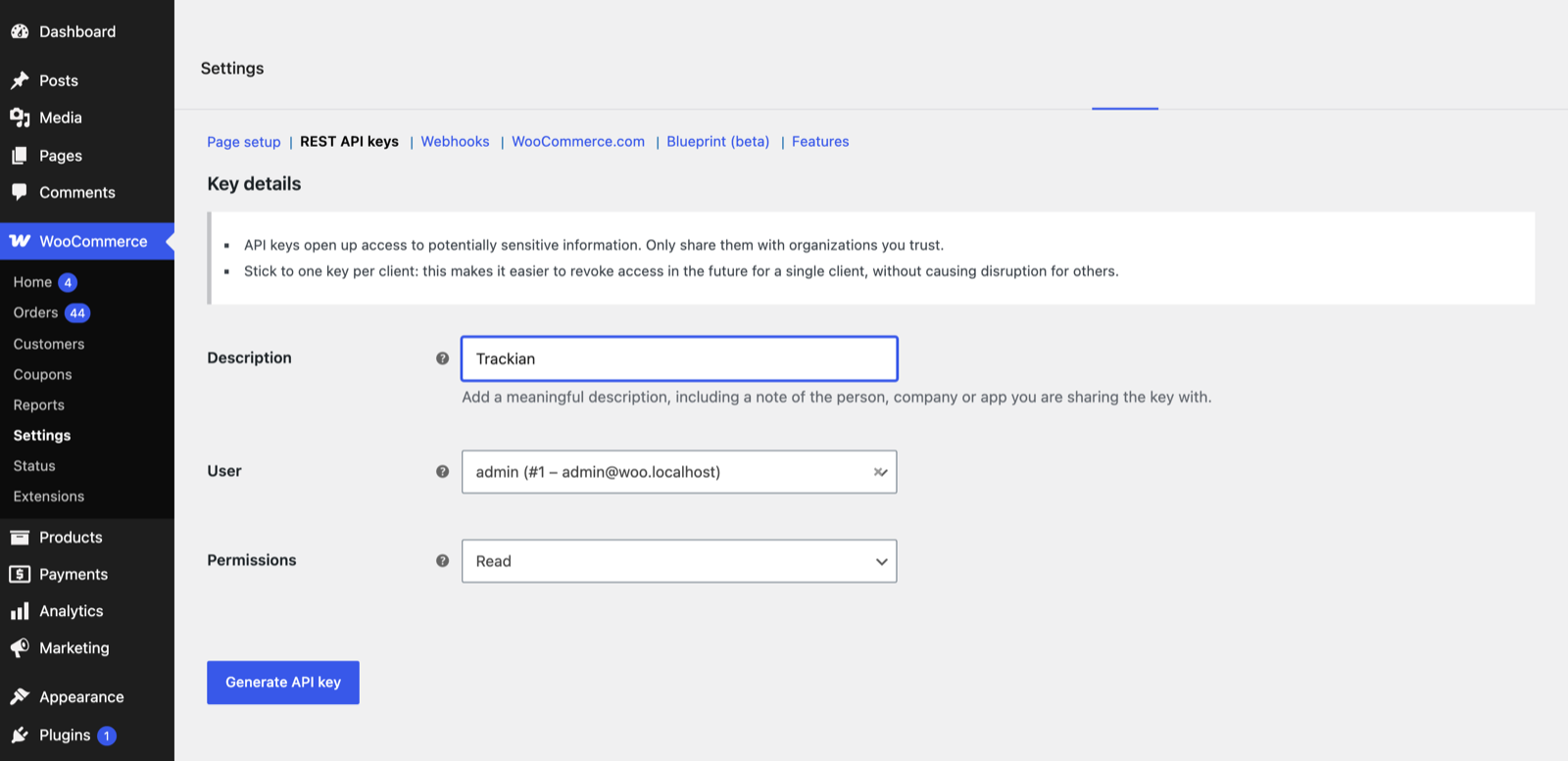
- Give the key a Description — "Trackian" is fine.
- Leave User set to an administrator account.
- Set Permissions to Read. Trackian only ever reads from your store, and a read key means it cannot change anything even by accident.
- Select Generate API key.
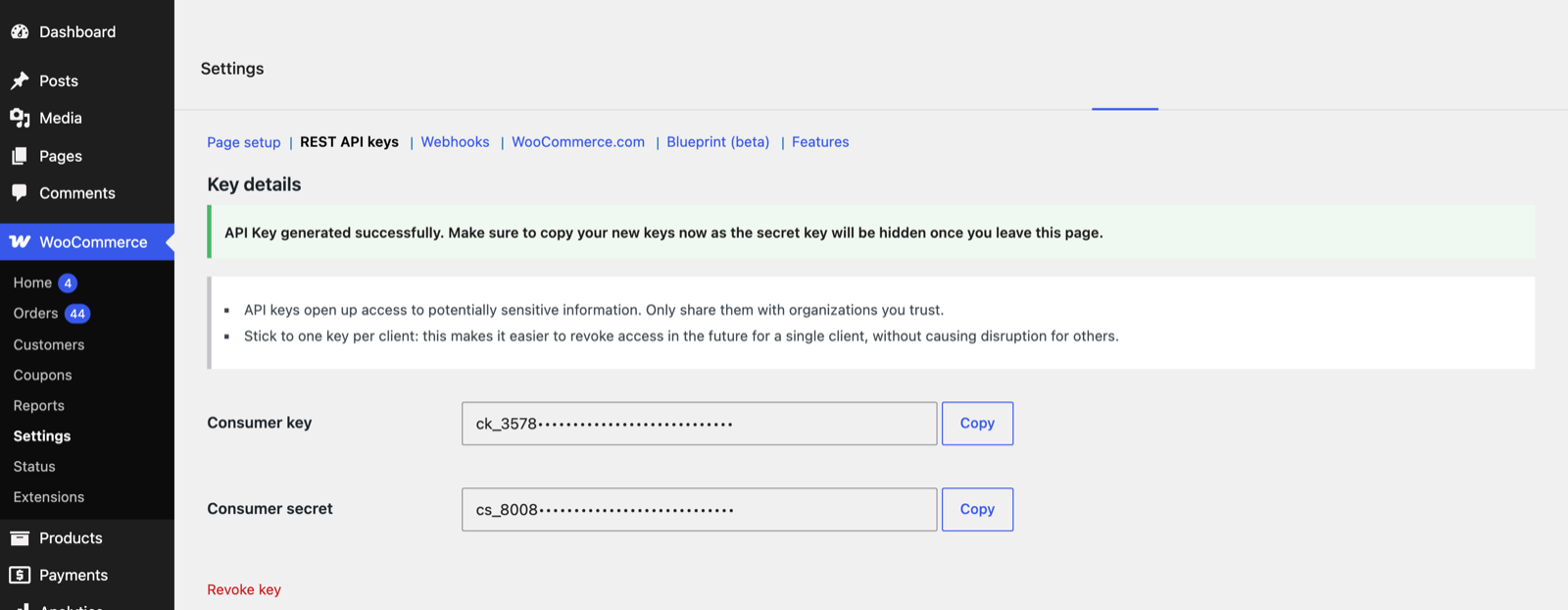
WooCommerce now shows your Consumer key and Consumer secret. Copy both straight away — the secret is hidden for good once you leave this page. If you lose it, revoke the key and create a new one.
Step 3 — Start the connection in Trackian
In Trackian, go to Setup → Platforms. Under Websites, find the Woocommerce card and select Connect.

Step 4 — Paste your credentials
- Consumer key — the value beginning
ck_. - Consumer secret — the value beginning
cs_. - Shop name — your domain on its own. No
https://, no trailing slash, no port. Forhttps://example.com, enterexample.com. - Select Add to list, then Save.
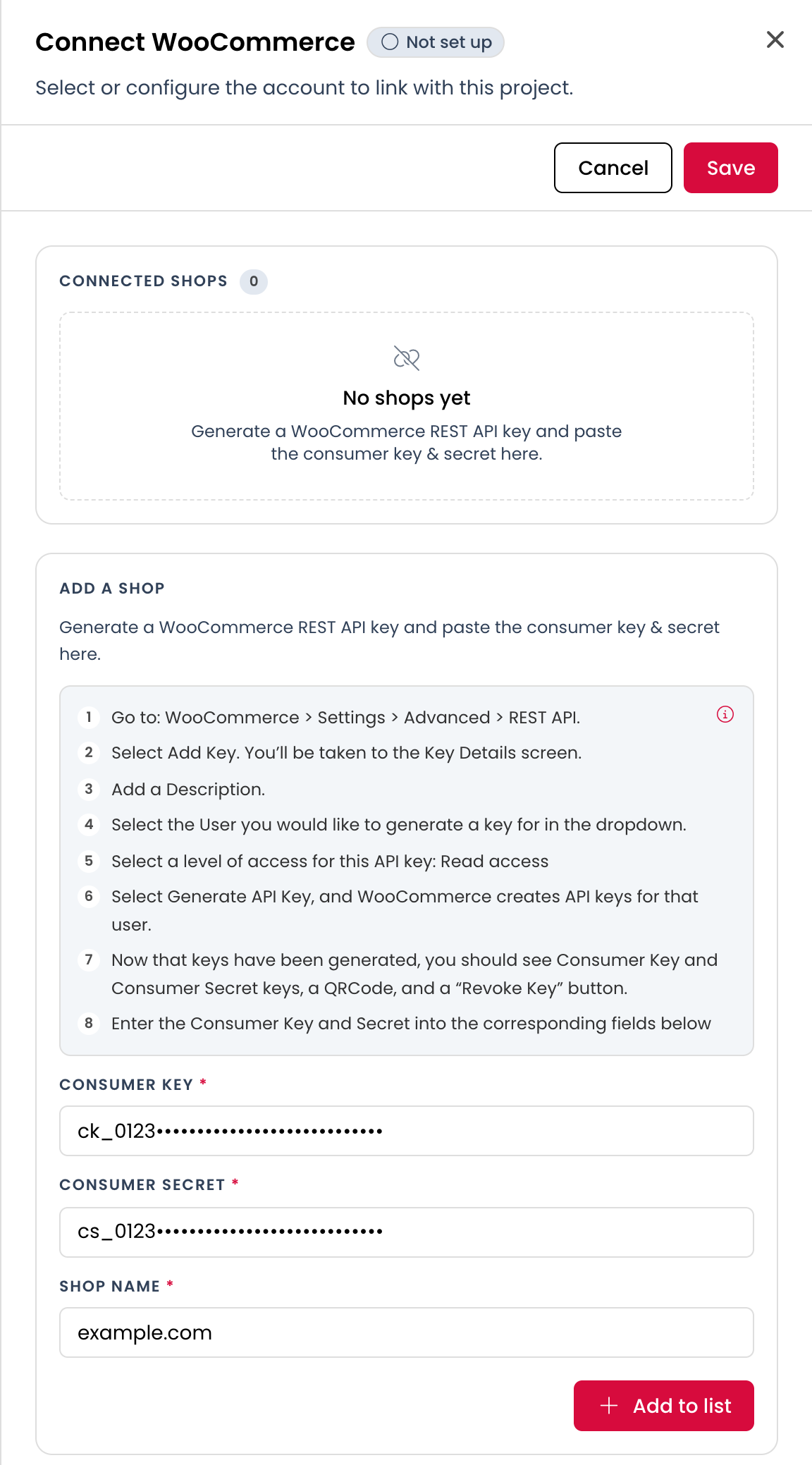
Trackian checks the credentials against your store the moment you select Add to list, so anything mistyped is caught right there rather than hours later.
What happens next
- Trackian finds the date of your oldest order and backfills your history from there — not just the last few weeks.
- From then on it syncs several times a day: orders, revenue, products and customers.
- The card's status moves from Not set up to Syncing to Live. Anything that goes wrong with a sync is shown on the card itself.
- To change the credentials later, open the card → Manage, select the pencil next to your shop, edit the fields, then select Update shop followed by Save. Select Update shop first — Save on its own won't pick up an edit you haven't confirmed.
Troubleshooting
"Failed to connect to WooCommerce. Check your credentials." The key or secret doesn't match what's on your store, has been revoked, or picked up a stray space when it was copied. Check it against WooCommerce → Settings → Advanced → REST API; the list there shows the last seven characters of each key.
"Shop Name is not valid."
The Shop name field has a scheme, port or path in it. It takes the bare domain and nothing else — example.com, not https://example.com/.
"All fields are required." One of the three fields is still empty.
"Source already exists." That shop is already connected to this project.
The store works in a browser, but Trackian can't reach it.
Check that your permalinks aren't set to Plain, and that a security plugin or firewall isn't blocking requests to /wp-json/.